

Cloud setup
Connect your repositories and give SourceAnt a first look at your code. This guide walks you through setting up your workspace, choosing a model and starting a scan.
Before you start
- A GitHub account with access to the repository you want to connect.
- Permission to install the SourceAnt GitHub App on that repository, or someone who can install it for you.
- An API key for a model provider, with access to the model you intend to use.
Cloud setup uses your own model key.
Open SourceAnt and sign in to begin onboarding.
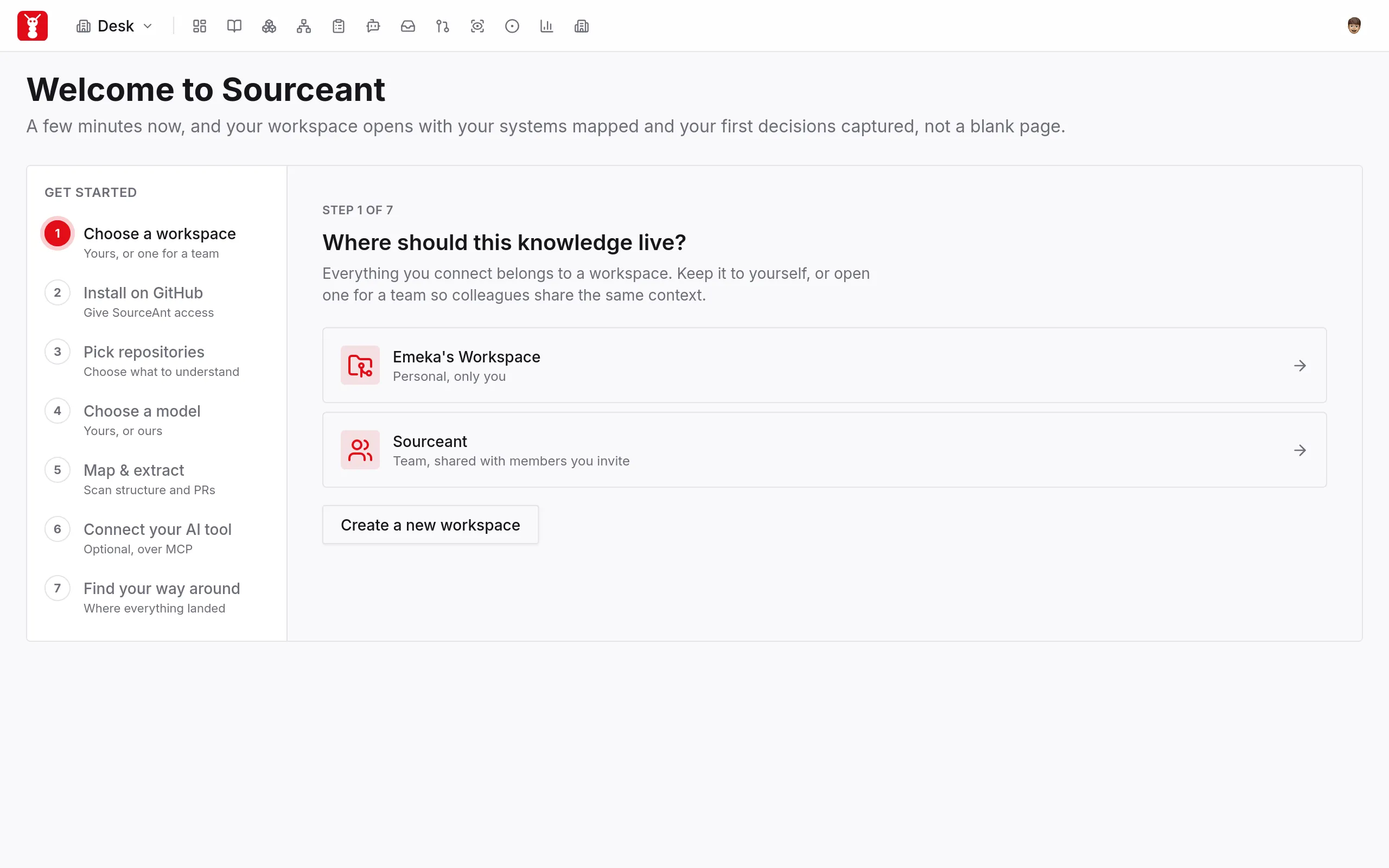
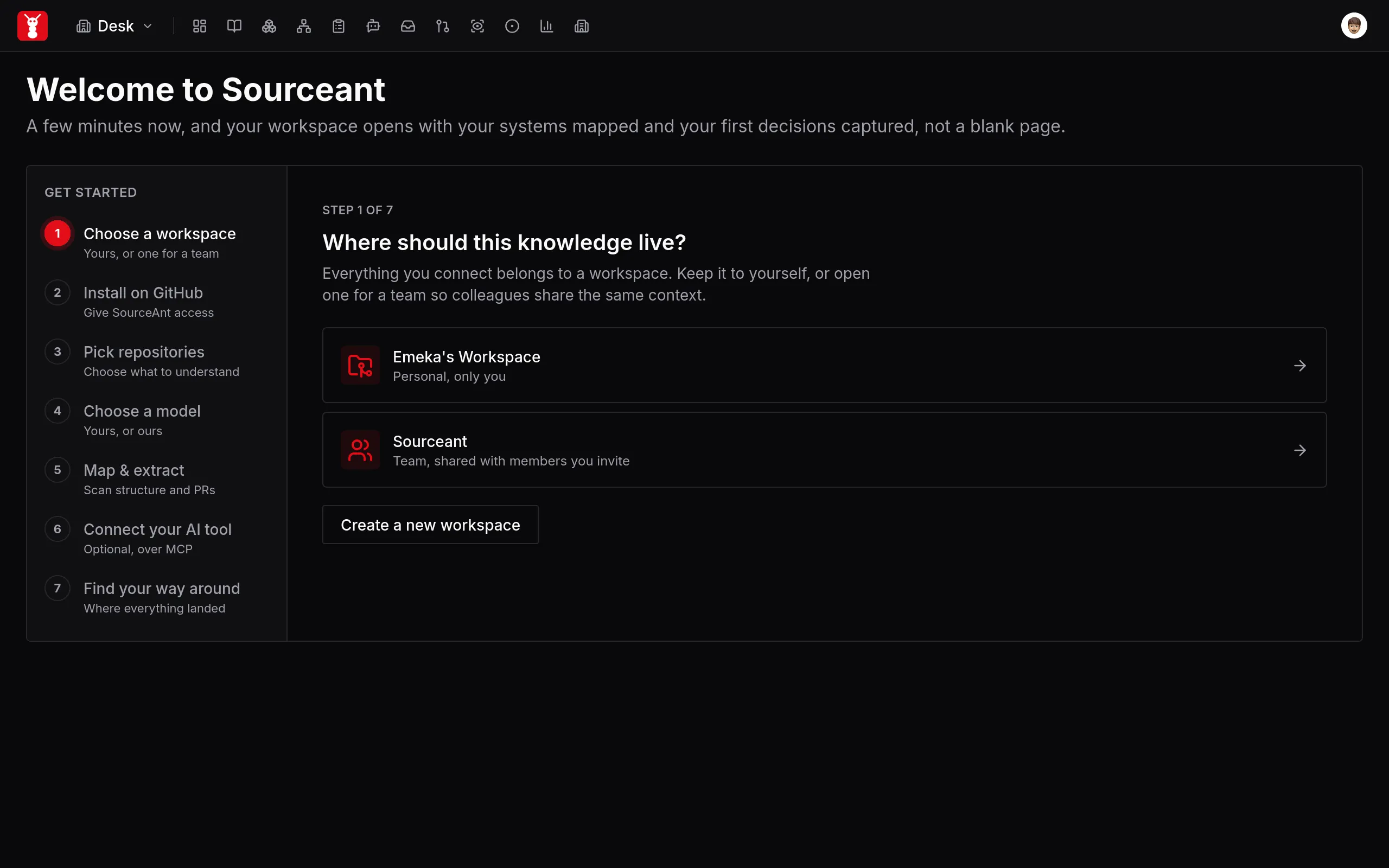
1. Choose a workspace
A workspace holds connected repositories, knowledge and systems. Choose a personal workspace for your own work or a team workspace for shared work. Check that you have selected the intended workspace before continuing.
2. Install the GitHub App
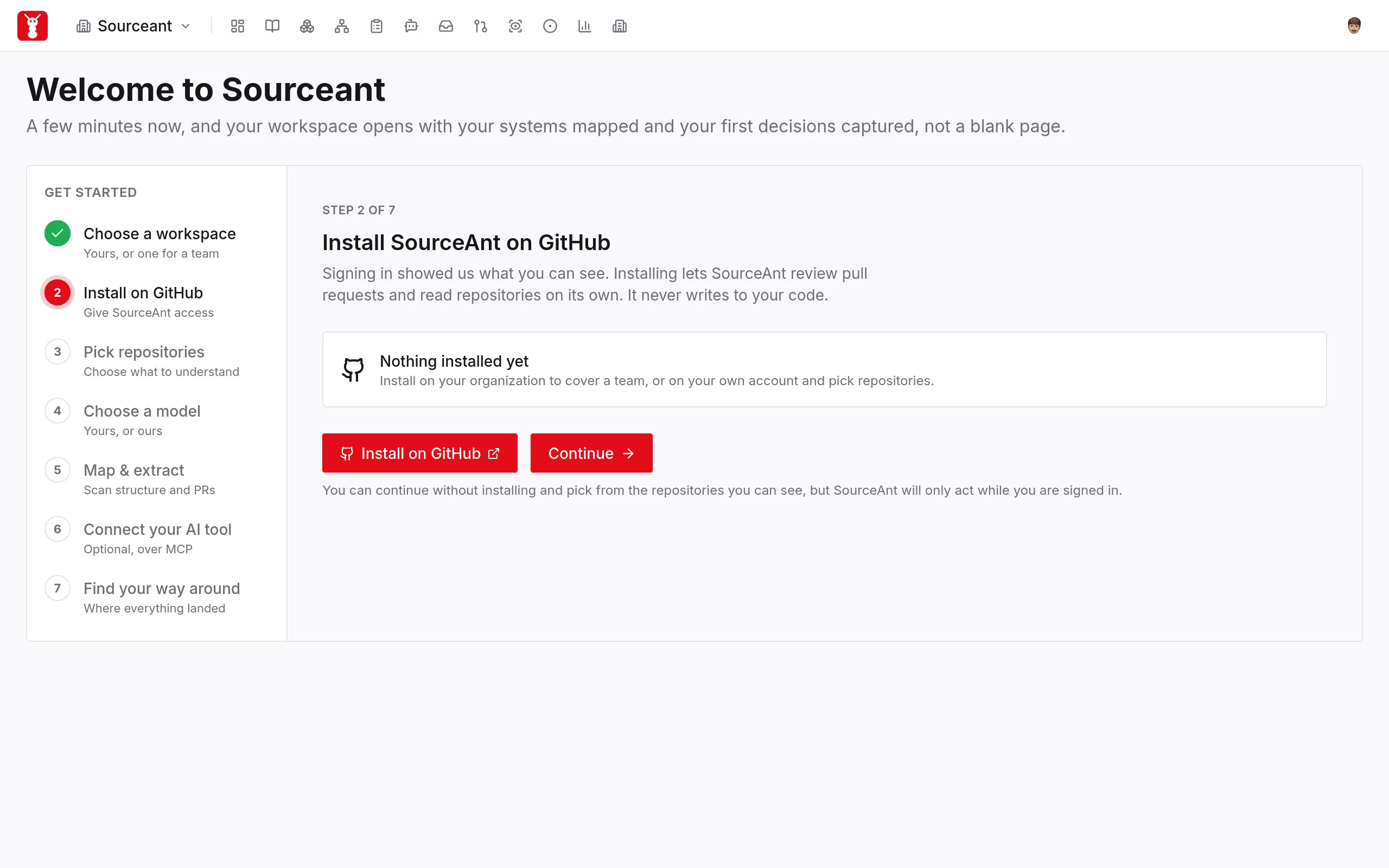
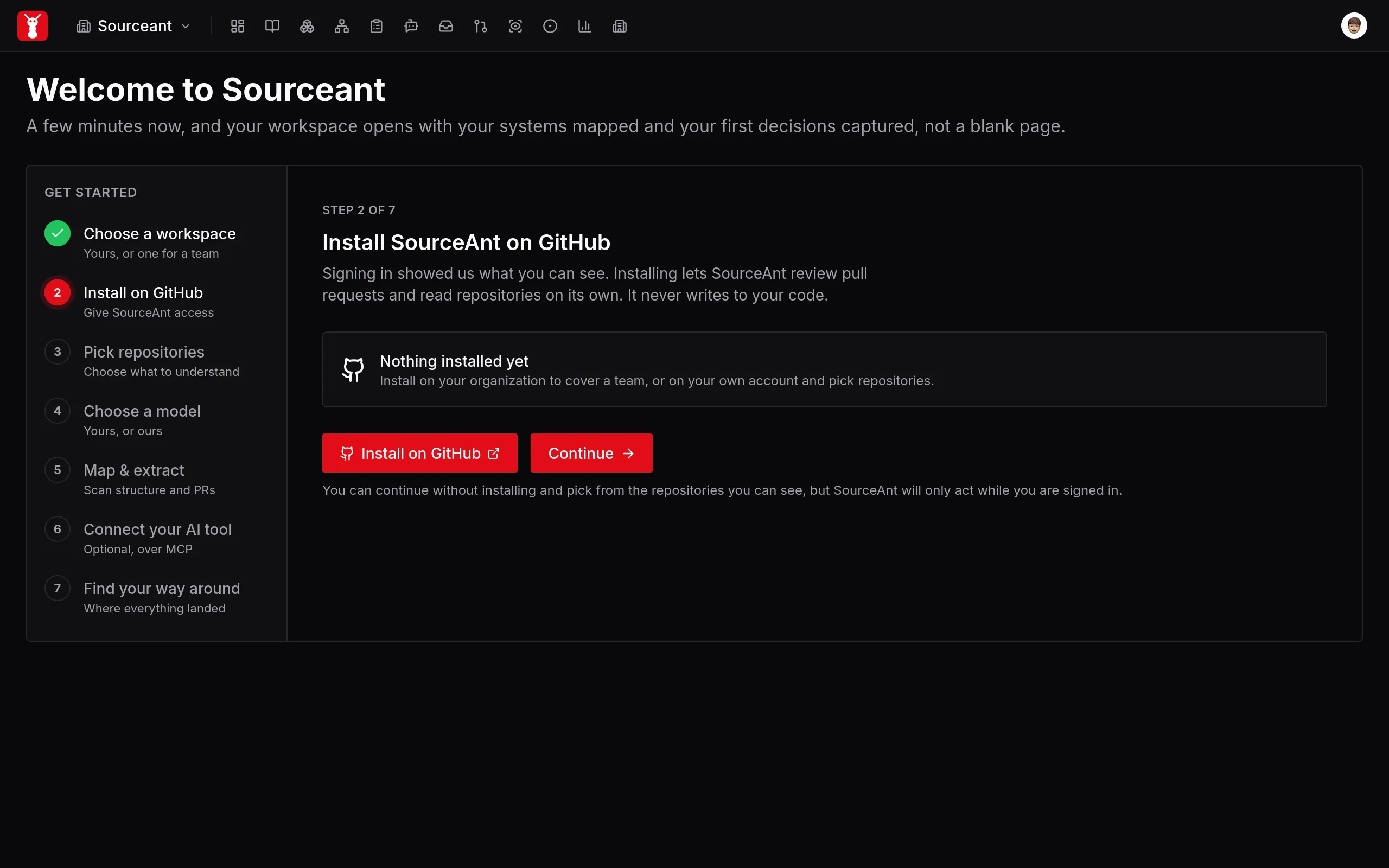
Click Install on GitHub. Choose the account or organisation that owns the repository, grant access to the repositories you want reviewed, and return to SourceAnt.
Signing in and installing the App are separate steps. Pull request reviews need the App installed with access to the repository. If someone else manages your organisation's GitHub Apps, ask them to complete this step.
3. Connect your repositories
Select your repositories in the picker, then click Connect & continue. Installing the App grants GitHub access; connecting a repository adds it to the workspace. You need both for this setup.
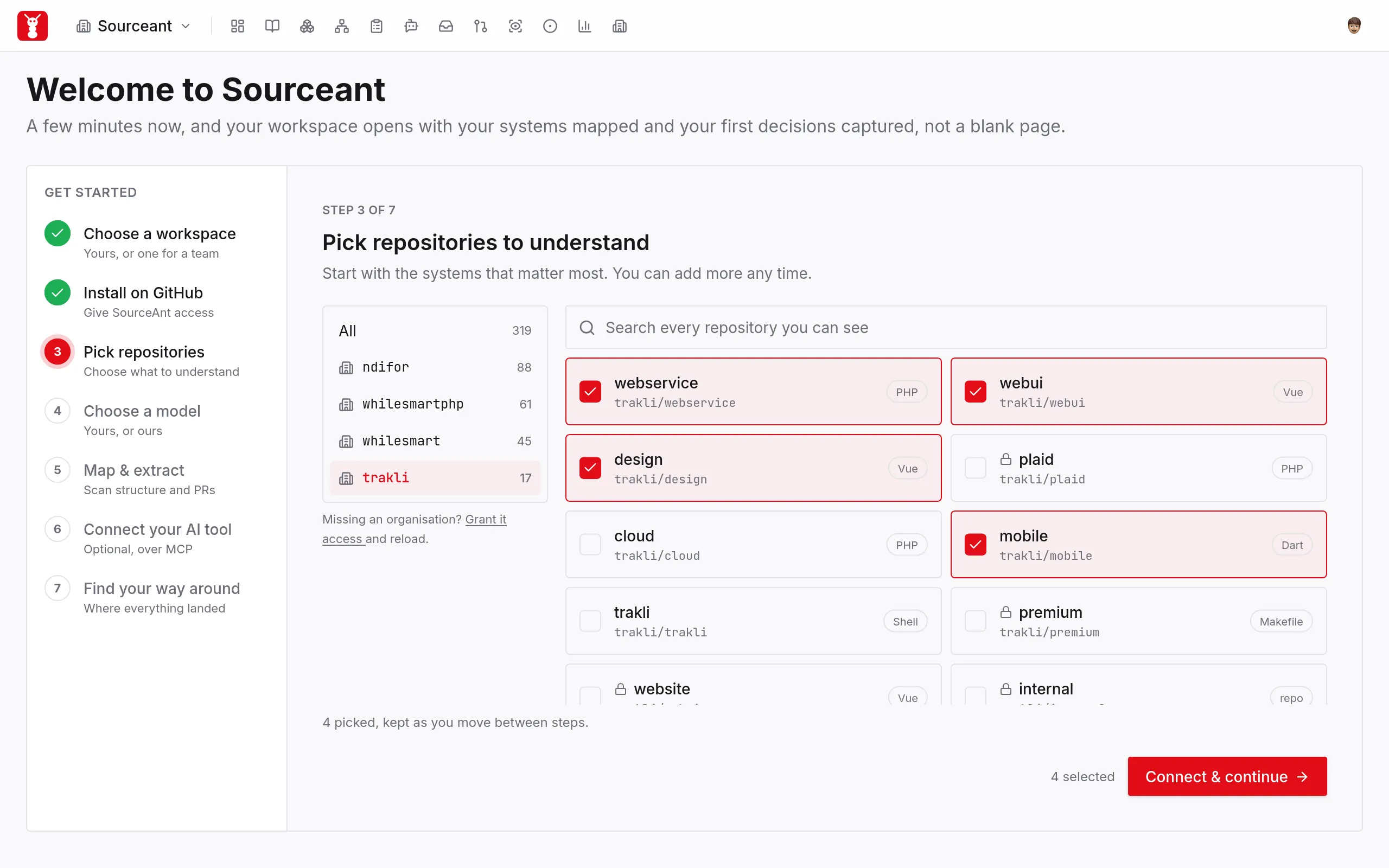
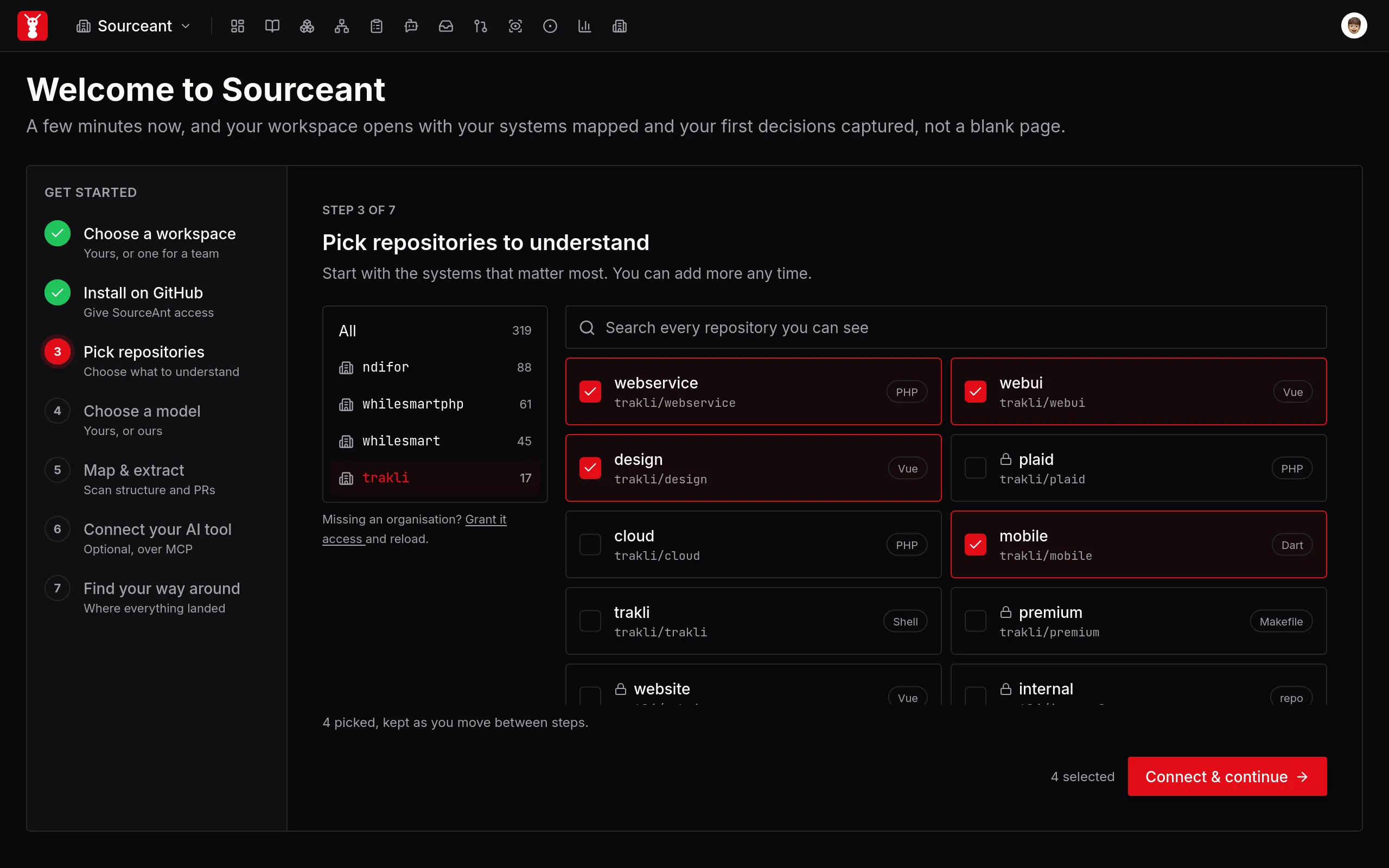
If a repository is missing, check which GitHub account you signed in with, your access to the repository, and the repositories allowed by the App installation.
4. Configure your model
- Select a Provider and Model.
- Paste that provider's key into API key.
- Leave Use this everywhere, not just in this workspace unchecked to save these settings for this workspace. Checking it saves them against your user account.
- Click Save & continue.
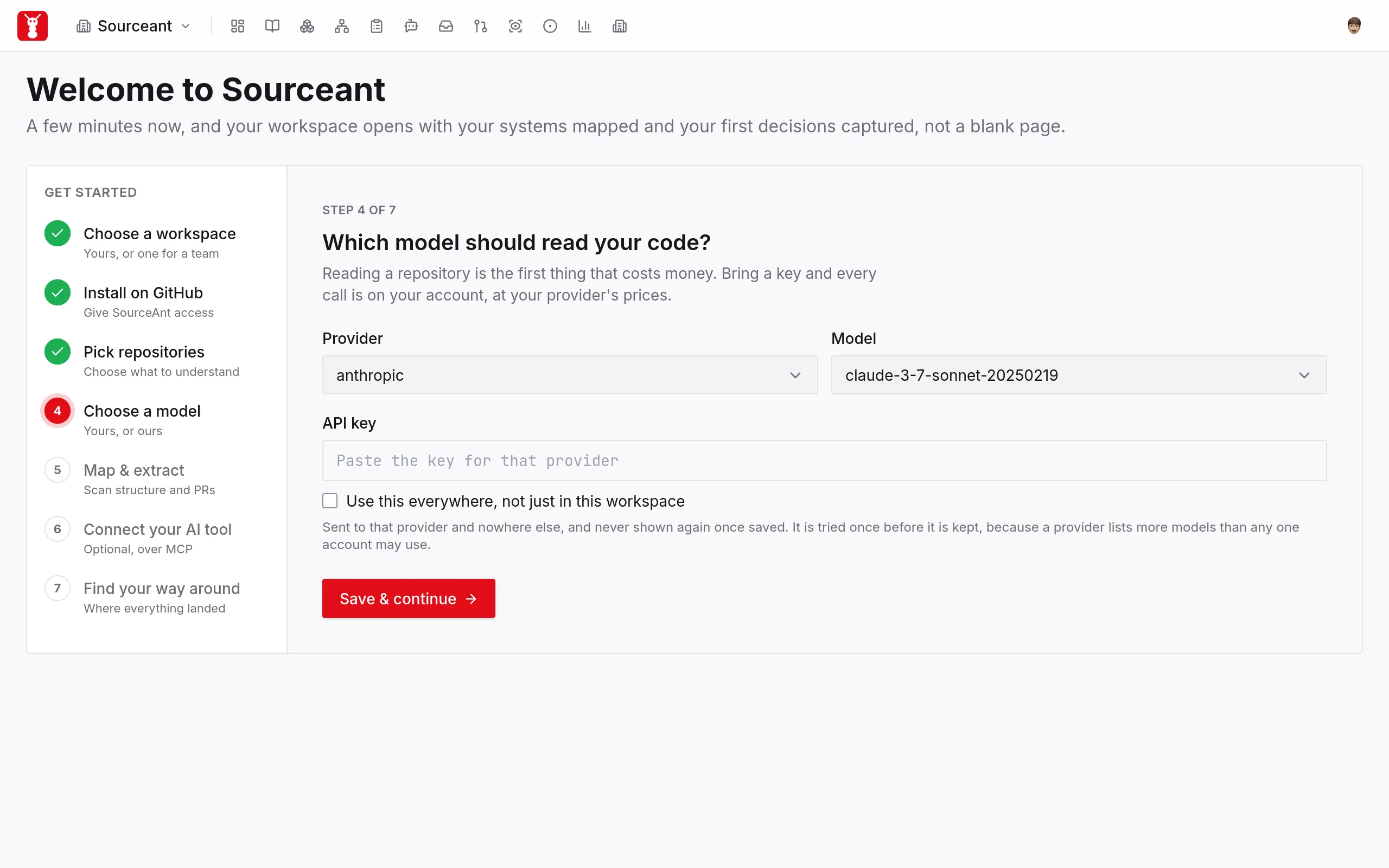
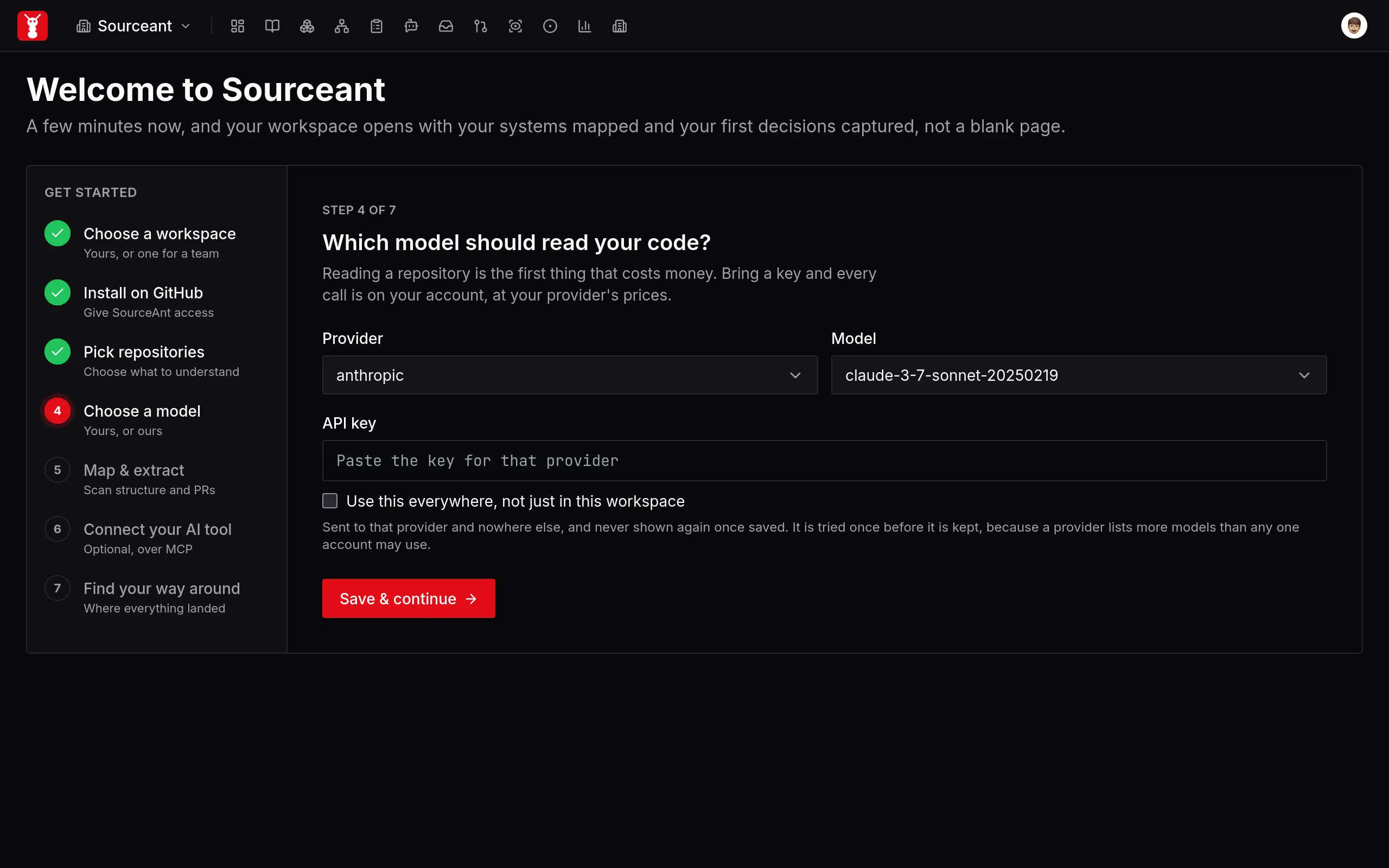
If validation fails, check that the key belongs to the selected provider and can access the selected model. Resolve the displayed error before starting a scan.
5. Start the repository scan
Click Start scan. SourceAnt queues a background task to read each connected repository and build its initial knowledge and system structure. Queued means the task was accepted, not that the scan has finished.
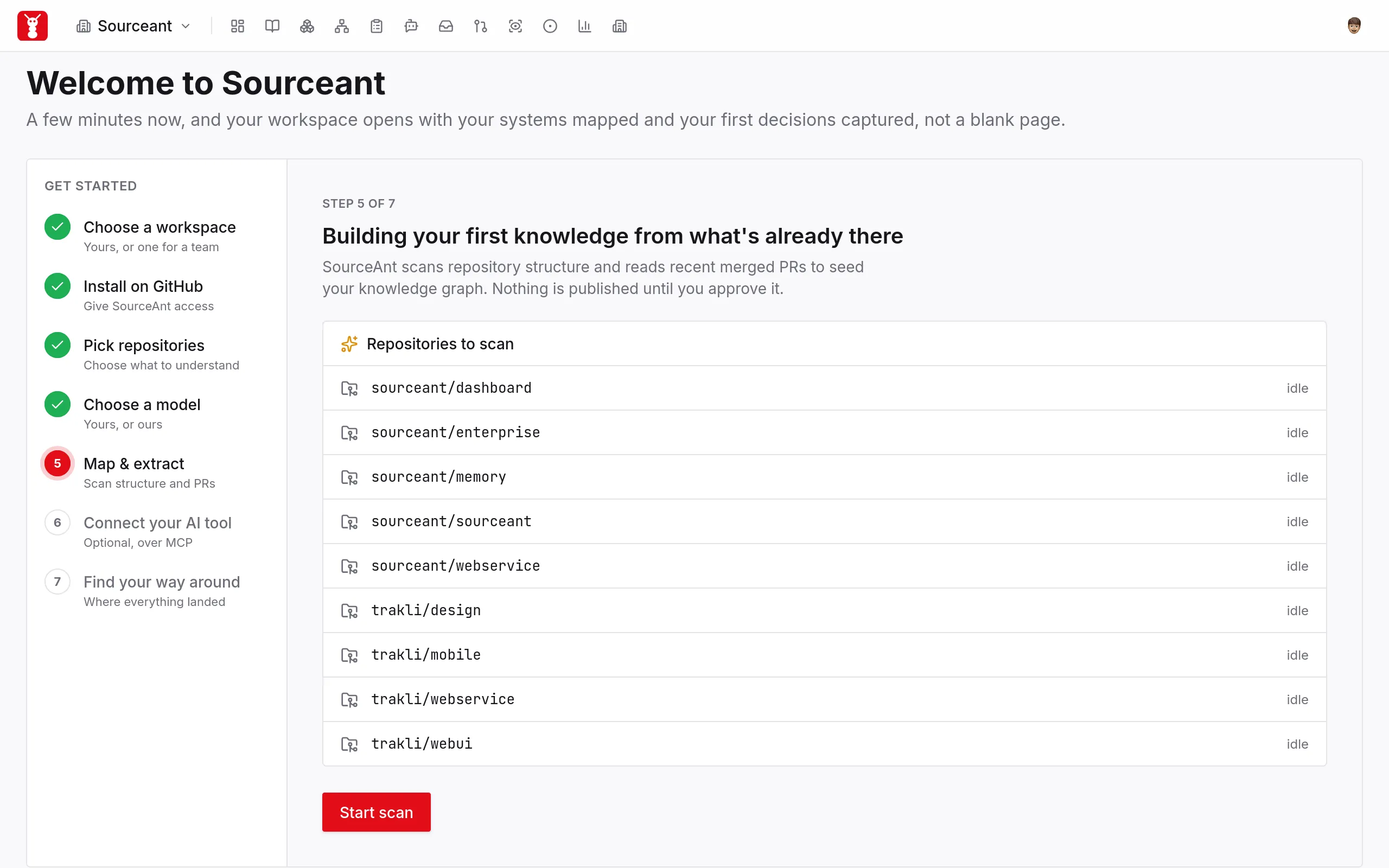
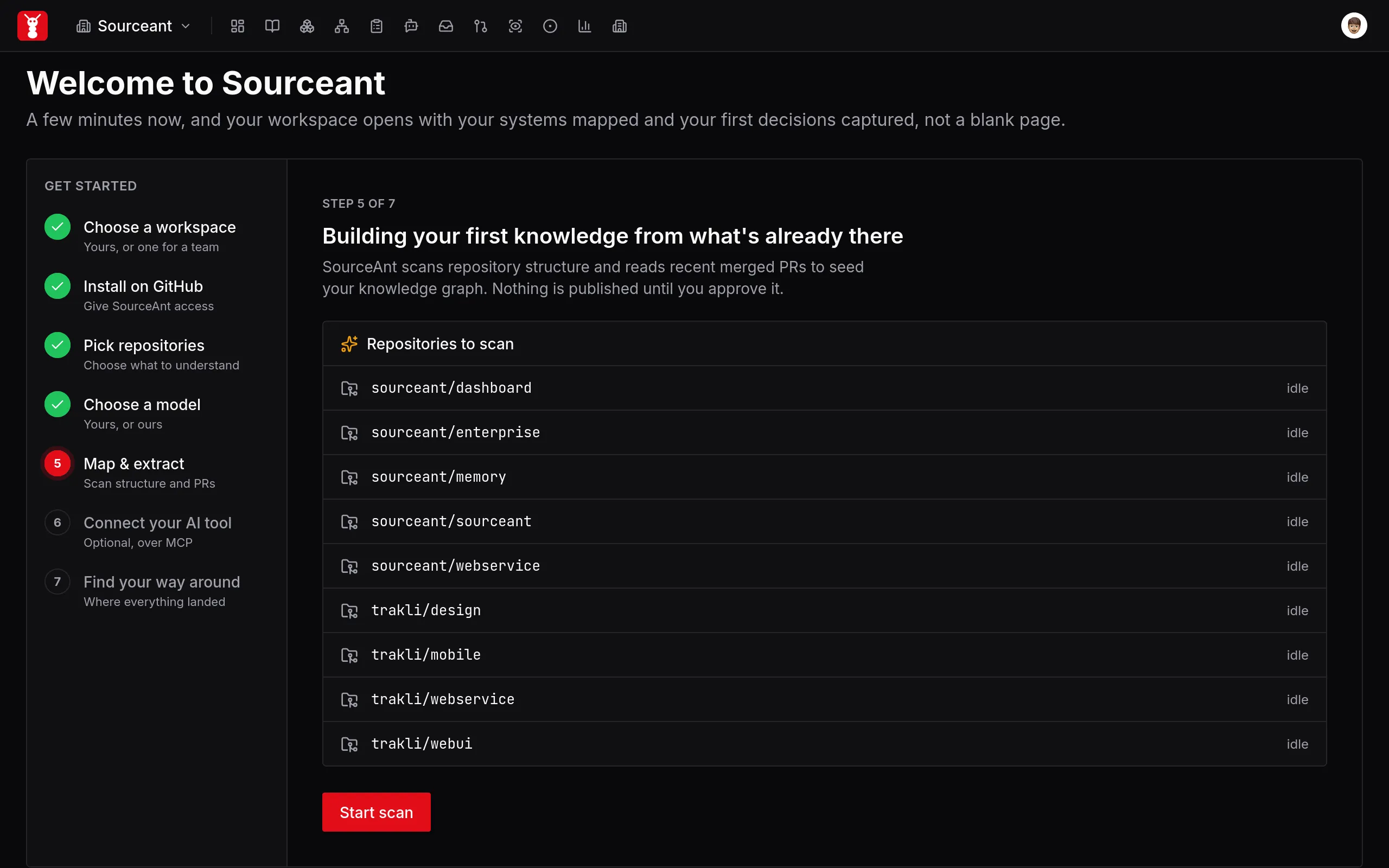
To look around first, choose Skip for now. Your repositories stay connected, and you can start a scan from a repository's page later.
6. Connect a coding assistant (optional)
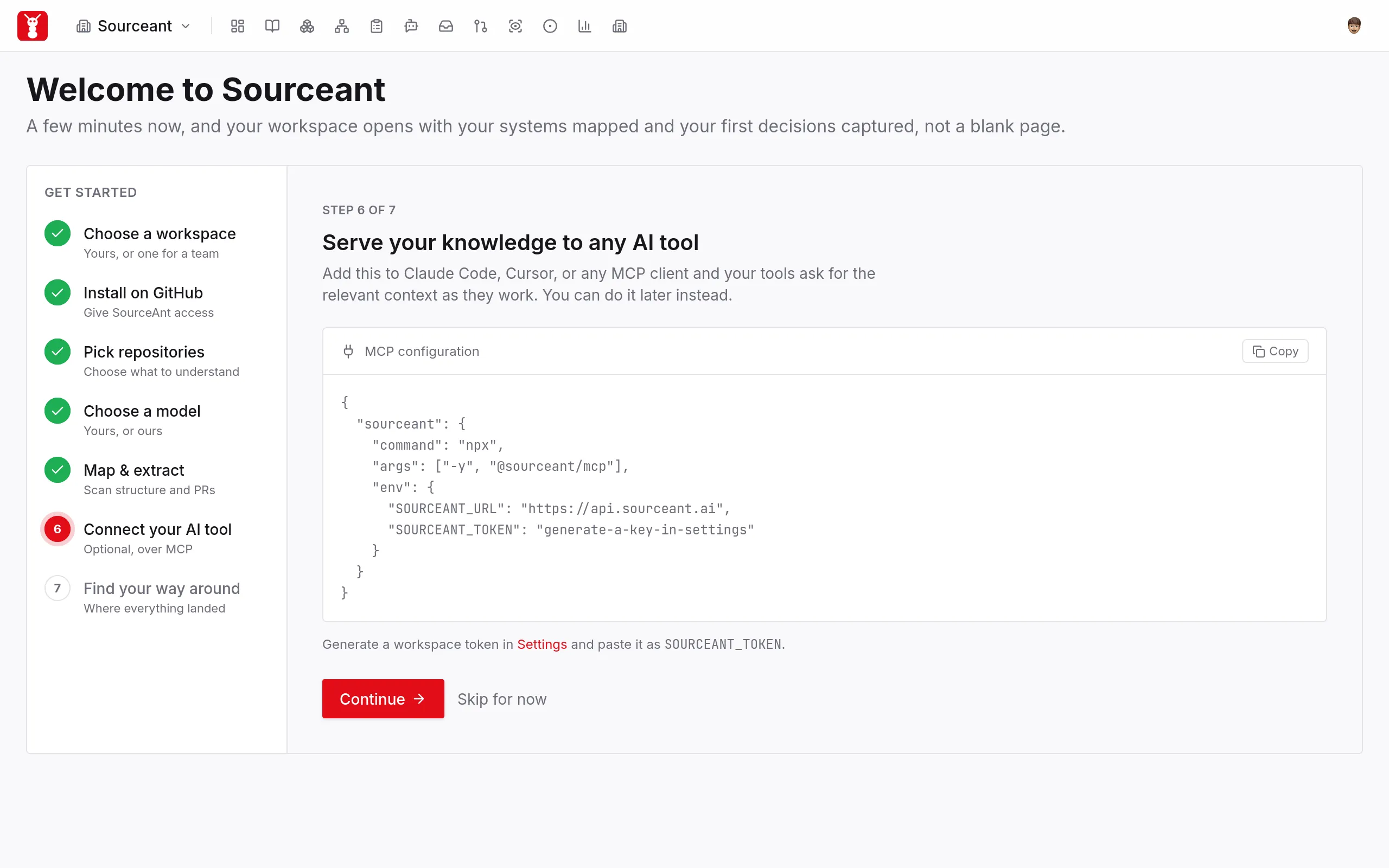
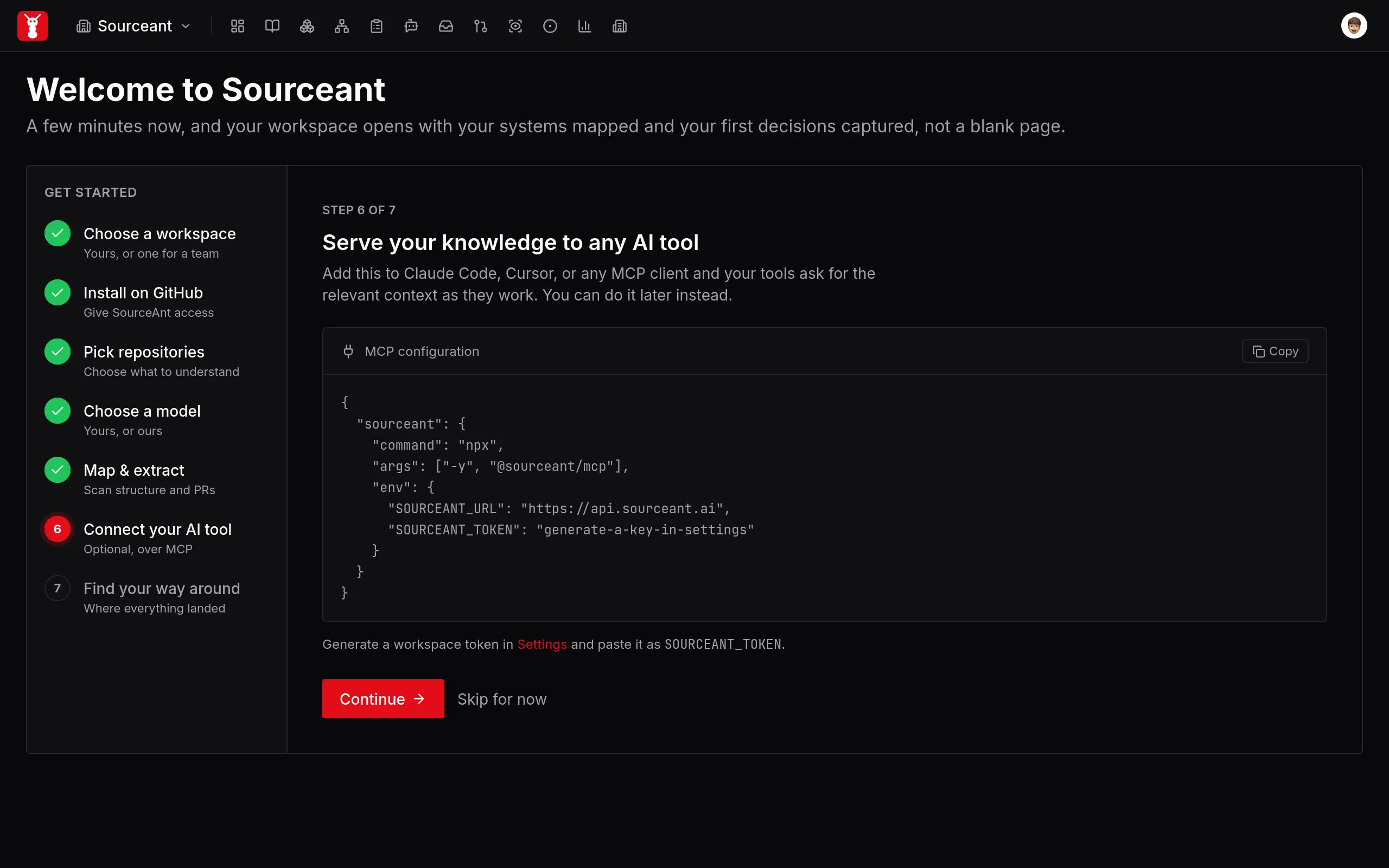
MCP lets a coding assistant call SourceAnt's tools for repository context. This step is optional and is not required for GitHub pull request reviews.
- Generate a workspace token in Settings.
- Copy the MCP configuration shown in onboarding into your client's MCP settings.
- Replace the
SOURCEANT_TOKENplaceholder with your workspace token. - Use your client's connection check to confirm it can reach SourceAnt.
The hosted service reads connected repositories. To review unpushed changes in a local checkout, use the local CLI and its MCP server.
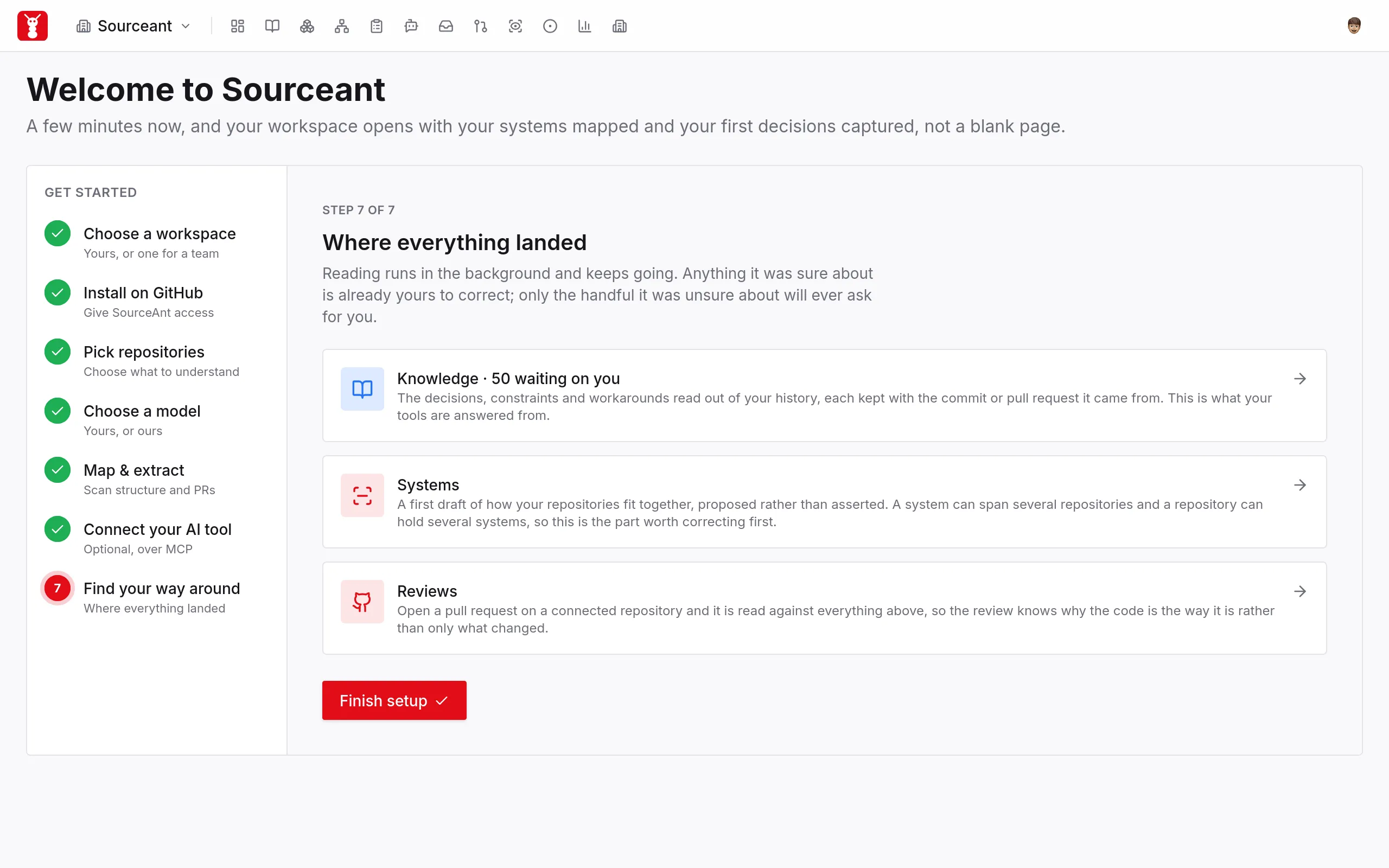
7. Check the results and open a pull request
After the scan finishes, inspect what SourceAnt has recorded:
- Knowledge: read the captured decisions and constraints, and review any pending proposals.
- Systems: check the repository grouping and connections, and correct anything that is wrong.
- Reviews: inspect the reviews produced for connected repositories.
Open a pull request on the repository you connected. Check the pull request on GitHub for SourceAnt's review or a notice explaining why it could not review the change.
If the first review does not appear
- Confirm the GitHub App has access to this repository.
- Confirm the repository is connected to the intended SourceAnt workspace.
- Check the configured model and API key in Settings.
- Read any SourceAnt notice on the pull request before retrying.
For model overrides, saved keys and review controls, see Settings.
Next steps
- Code review: understand what SourceAnt checks.
- Knowledge management: review and maintain captured context.
- Cross-repository reviews: set up context across related repositories.